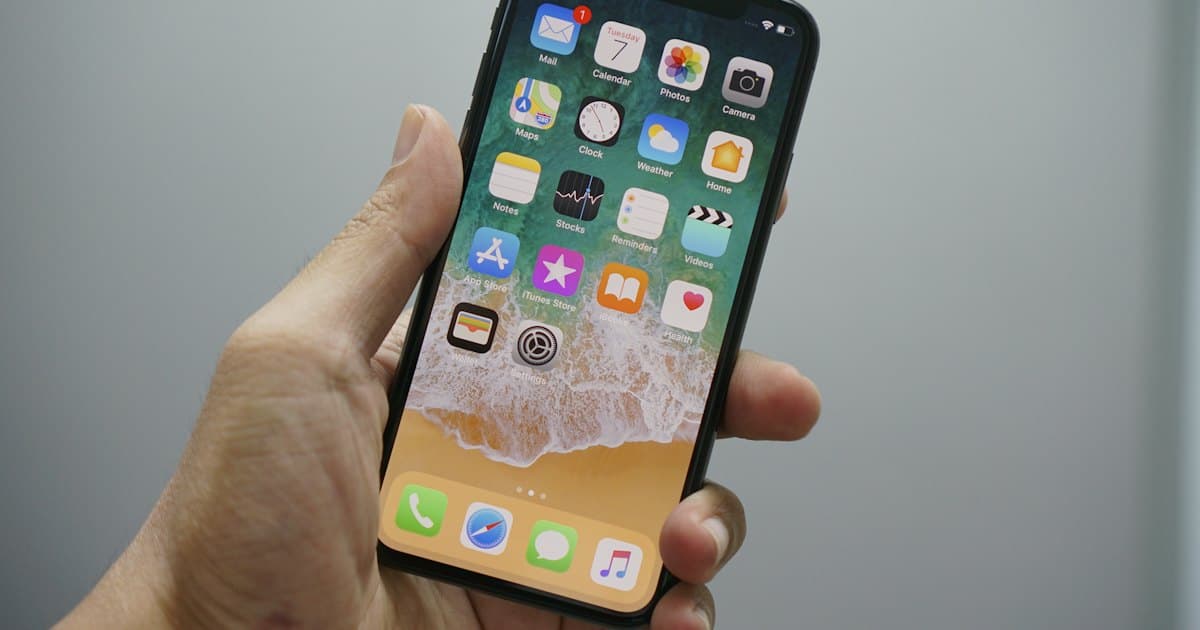
How to install Happ VPN on iPhone

Happ from the App Store, the subscription link, and permission for the VPN profile. Five steps, a couple of minutes. iPhone traffic is encrypted on any network.
If you are in Russia: Happ is not in the Russian App Store. Change the Apple ID region first — how to change the region on iPhone. After that Happ appears in the store, and you can follow the steps below.
To install Happ VPN on iPhone, download Happ from the App Store, paste the subscription link, and allow the VPN profile. Then turn the connection on — a couple of minutes is usually enough.
When you need this
An iPhone is always with you and joins whatever network is nearby: guest Wi-Fi in a hotel, an airport hotspot, a coworking network. On those networks the access-point owner can see the traffic. A VPN encrypts the phone’s whole connection up to the server, so mail, messengers, and work services stay protected on any network.
CHEBA VPN’s client is Happ, and the protocol is VLESS. You take the link or the QR from the account on chebavpn.com and move it into Happ. You do not download a separate configuration file.
The service lists its servers as Sweden. The trial is 3 days after sign-up. If you also need the same access on an Android phone, the steps are different: how to connect Happ VPN on Android.
If Happ is not in the App Store
Open the App Store and search for Happ. The iPhone button on the CHEBA VPN site goes to the App Store listing. Tap Get and wait for the install.
The storefront depends on the Apple ID country. If search finds nothing, or the store does not show the app, change the account region first. The steps are already written out: changing the iPhone region. You do not need a VPN for the region change itself.
How to move the link onto the iPhone
It is easier to open the account in Safari on the same iPhone. Then a long-press on the “Connection link” block copies it, and you paste it straight into Happ. The other path: open the account on a computer, put the “Subscription link” QR on the screen, and scan it from Happ. Both ways produce the same profile.
The steps are the same on iPad. The download button on the site goes to the App Store for both iPhone and iPad.
How to add the link
- Sign in to the account and copy the “Connection link”. Or leave the “Subscription link” QR on the screen.
- Open Happ and tap “+”.
- Paste the link or scan the code.
- If Happ asks how to import, choose “Import v2ray URL…” and paste the same link into that field again.
You will not have to pick a protocol. The link already contains VLESS. A short look at what that means in practice: the VLESS protocol.
After the import, the iPhone asks whether it may add a VPN configuration. Tap Allow and confirm with Face ID or the passcode if the system asks. Without that, Happ is open and the phone’s traffic does not go through it.
Then tap the profile and turn the connection on. A VPN icon appears in the status bar. Open the site again, not from a tab that was open before Happ.
The check is short. Open the IP check with the profile off, then turn it on and reload the page. The IP address and country should change to the CHEBA VPN server.
If it does not connect
“Import v2ray URL…” will not take the text. The link was copied in pieces. Go back to the account, tap the QR to copy it whole, and paste it with no space at the start.
VPN permission was denied. Open iPhone Settings, the VPN section, and see whether Happ is there. If there is no profile, open Happ again and accept the prompt. Until the system has allowed the configuration, the button in the app switches on and does nothing.
The profile turns on and immediately turns off. Check the account to see whether the 3 trial days have ended and whether the account is active. The old link stays in Happ even after access is closed.
The VPN is on, and the IP is the same. Close Safari from the app switcher and open the page again. Some tabs keep the connection that was open before the VPN. For YouTube it is worth a separate look at what else stops the video: VPN for YouTube.
The App Store is empty after a region change. The storefront does not update instantly. Swipe the App Store out of recents and open it again, as in the country-change guide. Look for Happ on the new storefront.
Short version
App Store, Happ, the link from the account, “+” or “Import v2ray URL…”, iPhone permission, and the profile turned on. If the app is not in the store, change the Apple ID region first, then follow the same steps.
Questions
How do I install Happ VPN on iPhone?
Download Happ from the App Store, copy the subscription link from your account, tap “+” in Happ, and allow the iPhone to add a VPN profile. Then turn the connection on.
How do I add a VPN configuration to Happ on iPhone?
In Happ, tap “+” and paste the subscription link or scan the QR code. If the app asks how to import, choose “Import v2ray URL…” and paste the same link.
Do I have to change the Apple ID region?
Only if Happ is not on your storefront. The CHEBA VPN subscription itself does not depend on the Apple ID country: the link comes from the service account, not from the App Store.
Do I need TUN mode on iPhone?
No. In the service guide, TUN is turned on for Windows so the computer’s whole traffic is captured. On iPhone an allowed VPN configuration and the profile turned on in Happ are enough.
One subscription for iPhone and Windows?
You can paste the link into both Happ apps. See the account for the limit on simultaneous devices.
What if the link in the account is empty?
Reload the page. The block is called “Connection link”. If it says no subscription was found, sign in again. During the 3 trial days the link should be there.