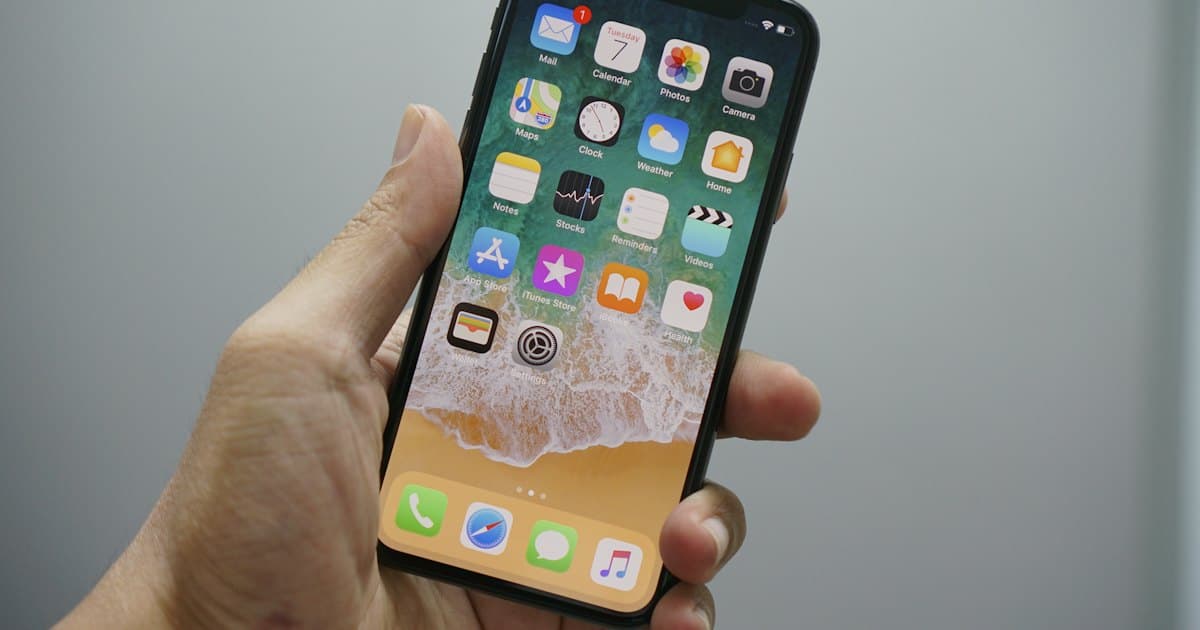
How to change the region on iPhone

How to change the Apple ID country on an iPhone through the App Store, and what to do if the region change does not go through.
You change the region right in the App Store, in a couple of minutes. It works when the Apple ID balance is zero and there are no active subscriptions.
Step 1. Open the account settings
- Open the App Store
- Tap your avatar in the top right corner
- Choose Account Information, Payments and Settings
- Tap Country/Region
Step 2. Pick another country
Find the country with the search at the bottom of the list. For example, Kazakhstan.
Apple will warn that some purchases may become unavailable. Tap Continue.
Step 3. Skip the payment method
Choose None (no card). You do not need to attach a card.
Step 4. Fill in the address and tap Done
An address like this works for Kazakhstan:
- Street: Almaty
- City/Town: Almaty
- Region: Almaty
- Postcode: 101000
Add a first name, last name, and phone number, then tap Done.
Step 5. Restart the App Store
Close the App Store and open it again. Apps that are missing from the Russian store are available now.
Common questions
It says “Could not complete the request”. What should I do?
One of three things is almost always in the way:
- money on the Apple ID balance, even a couple of rubles
- active subscriptions: Apple Music, iCloud+, and others
- Family Sharing. You cannot change the region from inside a family group
Remove the cause and repeat the steps.
Will my purchases disappear?
No. They stay on the account. Some apps will ask you to download them again. You do not pay a second time.
Do I need a VPN to change the region?
No. The Apple ID region changes without a VPN. To protect iPhone traffic on public networks, the guide how to install Happ VPN on iPhone is the one to use.